
By combining the “VPN Azure” feature built into SoftEther VPN Server with the VPN Azure Service, you can create a remote access environment to your company LAN even when it is difficult to open firewall or NAT ports. This section explains how to use the VPN Azure feature to remotely access a LAN from an external location.
10.12.1 Overview of VPN Azure
Make your office PC a dedicated VPN server for yourself.
Conventional VPN server products needs to be installed and configured by network administrators. NAT or firewall must be set up to open a TCP/UDP port. At least one fixed and global IP address necessary.
VPN Azure deregulates that limitation. If you use VPN Azure, you can connect from your home or mobile PC into your office PC easily. Your office PC becomes your dedicated VPN server. The VPN server initiates the TCP tunnel from the office PC towards a VPN Azure Cloud relay server, by behaving a normal HTTPS connection. Once such a "from behind a firewall" connection established, you can now connect to that VPN Azure Cloud relay server from anywhere, and be able to access any shared folders, mail servers or groupware in your office as if you are sitting just in front of your desk in the office.
Easy to Install VPN Server. No System Administrator Privilege Required.
In your office PC, you can install SoftEther VPN Server. SoftEther VPN Server can be installed without any administrator privilege. You don't have to ask the network administrator to do it. This is a benefit for both you and the administrator to reduce a work. SoftEther VPN Server runs in user-mode space, thus it is so safe.
Use Windows Built-in VPN Client. No Need to Install VPN Client Software.
VPN Azure supports SSTP (Secure Socket Tunneling Protocol) which was developed by Microsoft Corporation. Windows Vista / 7 / 8 / RT has a built-in VPN Client for SSTP. Therefore you need not to install any additional VPN software in the client PC. It is very easy to try. You can also use the latest Windows RT tablets.
Of course, you can install SoftEther VPN Client in your older PC (Windows XP or earlier) to connect to VPN Azure.
High-level Security.
All VPN traffics over the Internet are encrypted by SSL (TLS 1.0). The user-authentication processing is performed in the VPN server's side, which is in your office PC. The VPN Azure cloud has no involvement to conduct the user authentication process. Only you and your trusted persons who knows a username and password registered on the VPN Server can access to the VPN server securely.
10.12.2 Requirements
Your Office PC (Server-side)
Refer to 3.1 Operating System Requirements for supported OS details.
An Internet connection is required. Operation is possible behind NAT or firewalls and with a private IP address. Installation and operation are possible with standard user privileges.
If company policy requires administrator approval for software installation, obtain approval from the system administrator before installing. If that is not possible, obtain approval from a senior executive.
Your Home PC (Client-side)
- Windows Vista, 7, 8, 10, 11
- Windows RT
- Windows Server 2008, 2012, or later
- Windows 98 SE, ME, 2000, XP
- Windows Server 2003
- Linux
10.12.3 How to Install VPN Server on Your Office
This example explains how to set up VPN Server on a company PC. Do it in your office hours.
First, install and perform the initial configuration of VPN Server according to 7. Installing VPN Server.
Specify Your Preferred Host Name
During initial setup, the “Dynamic DNS Function” screen appears. Specify your preferred host name (3–31 alphanumeric characters).
For example, if you choose “test1”, your VPN Azure host name will be "test1.vpnazure.net".
Although the Dynamic DNS screen mentions the suffix “.softether.net,” for VPN Azure this is replaced with “.vpnazure.net.”
After entering the host name, click “Change to the above DNS host name.” When confirmation appears, click “Close.”
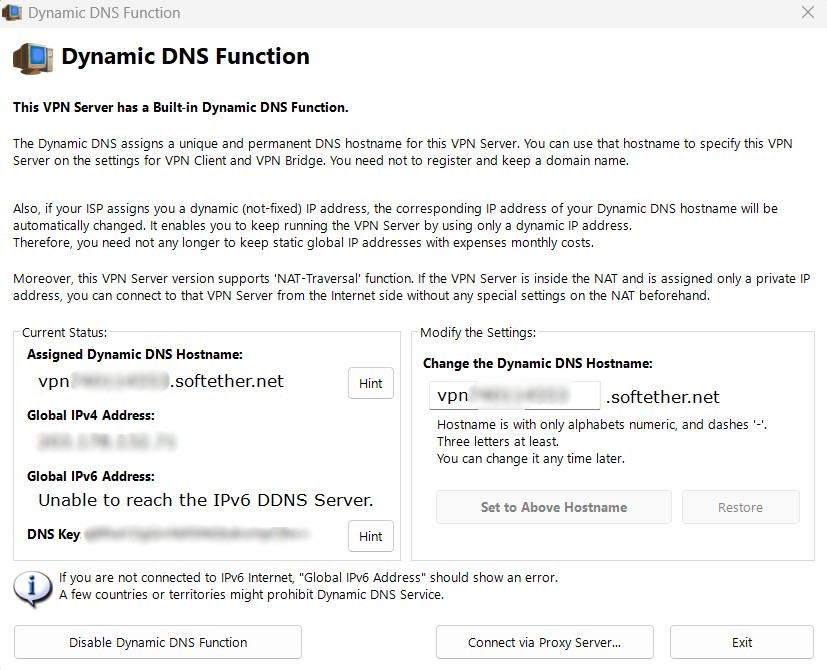
Dynamic DNS Function
IPsec Settings Screen
The screen titled “IPsec / L2TP / EtherIP / L2TPv3 Server Function Settings” will appear. This enables IPsec VPN connections from devices such as iPhone, iPad, and Android. However, IPsec cannot be used via VPN Azure. Therefore, click “OK” without changing any settings.
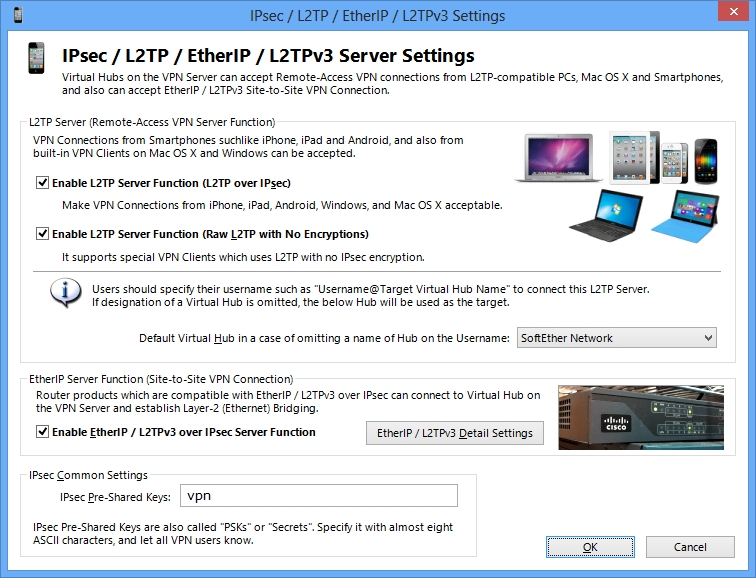
IPsec / L2TP / EtherIP / L2TPv3 Settings Screen
Enable VPN Azure
On the “VPN Azure Service Settings” screen, check the box labeled “Enable VPN Azure.” (The feature is disabled by default.)
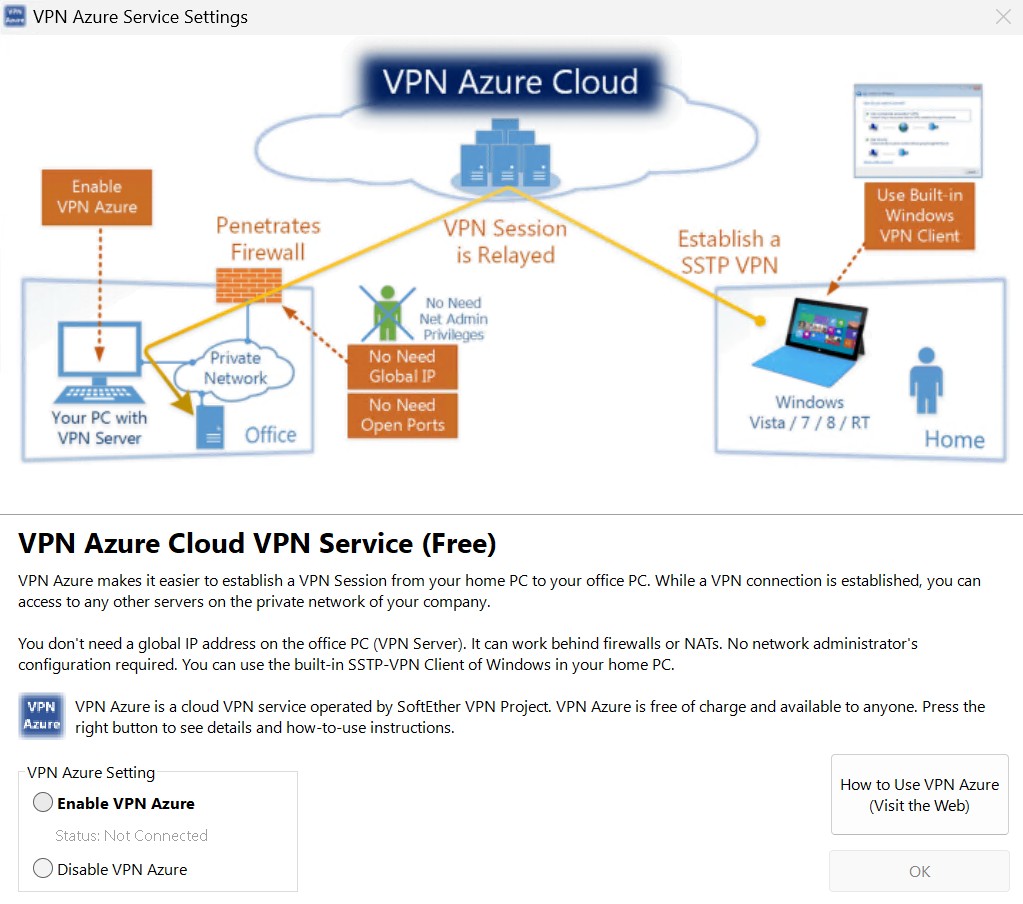
Configuring VPN Azure Cloud Services with Easy Setup
After you activate it, wait for a few seconds and the status will be changed to "Status: Connected" . In this status. Your VPN Server is connected to VPN Azure. Now the VPN Server is reachable from the Internet, anywhere via the VPN Azure Cloud Servers.
If the "Status: Connected" never comes, your computer might not be connected to the Internet. Make sure your web browser can access to any web sites. If there is a "dirty firewall" to tap and modify your traffics, your connecting attempt to VPN Azure might fails. In such a case, ask your network administrator to remove such a dirty firewall on your company's network.
Configuration Completed !
Congratulations! Your VPN Server is ready to be connected from anywhere, if the "VPN Azure Hostname:" status and current hostname is printed on the main screen of VPN Server Manager. Right now, let's go home and try to connect to your VPN Server from your home PC, by referring to the right-side description of this site.
By the way, you can use VPN Server Manager to change any settings about all tasks which you did recently in the previous steps. You can review and modify the settings of VPN Azure by clicking the "VPN Azure Setting" button. You can add, remove or view user objects after double-clicking the Virtual Hub icon.

Trouble Shooting (If any troubles)
You should investigate your log file of VPN Server if any of the above steps was failed.
The log files of VPN Server are stored on the "server_log" directory which is located in the installed directory of SoftEther VPN Server. Logs can be read by Norepad or other text editor.
